The top of the IP Configuration dialog box shows the name of the network card to which all the rest of the information in the dialog box applies. If you have more than one network card or a have a modem installed on the system, you can use the drop-down arrow to select the other device and view its information.
Just below the name of the network card, you’ll see the Media Access Control (MAC) or physical address of the network card. The MAC address is a unique hexadecimal code that's stored in a read-only memory (ROM) chip on the network card and is used to identify a computer on the network.
The next three boxes show typical IP address configuration information: the IP address assigned to the system, the subnet mask, and the default gateway. When you type Ipconfig.exe at a command prompt in Windows NT or Windows 2000, you’ll see a listing like the one shown in Figure B. As you can see, Windows 2000’s basic listing displays the Connection-Specific Domain Name System (DNS) Suffix, as well as the typical IP address configuration information. Windows NT’s basic listing only displays the typical IP address configuration information.

Windows 2000’s basic IP Configuration display presents essentially the same information as Windows 98’s basic IP Configuration dialog box.
The Connection-Specific DNS Suffix is a special feature Windows 2000 brings to the table. This feature allows a Windows 2000 Dynamic Host Configuration Protocol (DHCP) server to assign a DNS suffix to the network card to specifically identify the system on the network. For more-detailed information on the Connection-Specific DNS Suffix feature, see the Naming Hosts And Domains section of the Windows 2000 DNS chapter in the Windows 2000 Resource Kit. This chapter is available on the sample online version of the Windows 2000 Resource Kit.
Looking at the detailed display
Click the More Info button on the graphic version of IP Configuration in Windows 95 or Windows 98 to expand the display. Doing so reveals even more useful information on the TCP/IP configuration and the network card, as shown in Figure C.

When you click the More Info button, the IP Configuration dialog box displays detailed information about the system’s TCP/IP network configuration.
The Host Information section of the IP Configuration dialog box displays the system’s host name and DNS server address. If the system leases an IP address from a DHCP server, you’ll see the node type and NetBIOS scope ID. You can also find out whether IP Routing is enabled, whether WINS Proxy is enabled, and whether the NetBIOS Resolution is using DNS.
In the Ethernet Adapter Information section, you’ll see the address of the DHCP server, as well as the addresses of the primary and secondary WINS servers. You can also determine when the DHCP lease was obtained and when it expires.
In Windows NT and 2000, the command Ipconfig /all shows the same information that is displayed in Windows 98’s expanded IP Configuration dialog box as shown in Figure D.
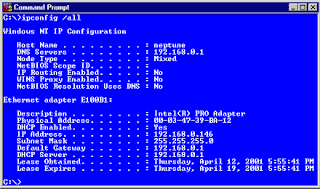
Using the Ipconfig /all command displays the IP address configuration information for a Windows NT or Windows 2000 system.
Just below the name of the network card, you’ll see the Media Access Control (MAC) or physical address of the network card. The MAC address is a unique hexadecimal code that's stored in a read-only memory (ROM) chip on the network card and is used to identify a computer on the network.
The next three boxes show typical IP address configuration information: the IP address assigned to the system, the subnet mask, and the default gateway. When you type Ipconfig.exe at a command prompt in Windows NT or Windows 2000, you’ll see a listing like the one shown in Figure B. As you can see, Windows 2000’s basic listing displays the Connection-Specific Domain Name System (DNS) Suffix, as well as the typical IP address configuration information. Windows NT’s basic listing only displays the typical IP address configuration information.

Windows 2000’s basic IP Configuration display presents essentially the same information as Windows 98’s basic IP Configuration dialog box.
The Connection-Specific DNS Suffix is a special feature Windows 2000 brings to the table. This feature allows a Windows 2000 Dynamic Host Configuration Protocol (DHCP) server to assign a DNS suffix to the network card to specifically identify the system on the network. For more-detailed information on the Connection-Specific DNS Suffix feature, see the Naming Hosts And Domains section of the Windows 2000 DNS chapter in the Windows 2000 Resource Kit. This chapter is available on the sample online version of the Windows 2000 Resource Kit.
Looking at the detailed display
Click the More Info button on the graphic version of IP Configuration in Windows 95 or Windows 98 to expand the display. Doing so reveals even more useful information on the TCP/IP configuration and the network card, as shown in Figure C.

When you click the More Info button, the IP Configuration dialog box displays detailed information about the system’s TCP/IP network configuration.
The Host Information section of the IP Configuration dialog box displays the system’s host name and DNS server address. If the system leases an IP address from a DHCP server, you’ll see the node type and NetBIOS scope ID. You can also find out whether IP Routing is enabled, whether WINS Proxy is enabled, and whether the NetBIOS Resolution is using DNS.
In the Ethernet Adapter Information section, you’ll see the address of the DHCP server, as well as the addresses of the primary and secondary WINS servers. You can also determine when the DHCP lease was obtained and when it expires.
In Windows NT and 2000, the command Ipconfig /all shows the same information that is displayed in Windows 98’s expanded IP Configuration dialog box as shown in Figure D.

Using the Ipconfig /all command displays the IP address configuration information for a Windows NT or Windows 2000 system.
